Author Archives: Brian Mackey (The Revit Geek)

Revit Database Link

For those of you out there who have been using the Revit Data Base Link from the subscription site will be happy to know they have posted a new version for Revit 2012. Please log on to YOUR subscription site and download the new version.

The new release is intended to address the following issues:
  1. The following error when attempting to export:    Error: Attempted to read or write protected memory. This is often an indication that other memory is corrupt. 
  2. A blank RoomFromToAssociations table caused by project phasing.


Autodesk Design Review Mobile for Android

Autodesk had released Design Review Mobile app for the android market.  Read more on the blog Between the Lines with Shawn Hurley.  Similar to the app for the iPad it can only use files stored on your Autodesk Cloud account making it really only work if you are on subscription.  So if you want to be able to use your own documents then you will have to get your cloud account up and running first.  I have to say I have found the iPad version really nice to use out in the field to view all sheets and even the 3D model while on site, even with the size limitation because of the iPad.  I will look forward to testing this out on an Android device to see how the size limitation is going to be affected.

Linework Tool and Underlay

This is a tip that I have been showing for years and I was reminded of it today while training a student.  The tip involves the use of the Linework tool along with underlay while in plan views.  This student was asking how to display the roof overhang in plan and wondered if it could be displayed as hidden lines.  The first, most CAD-like, response was to simply draw hidden lines where these elements were.   I explained how that is an option, but what happens when the roof changes or moves?  Now someone would have to go back and adjust the lines to match the changes.  If Revit could do that automatically, that would be a better solution.  My suggestion was to turn on the underlay so that the elements in question could be seen.

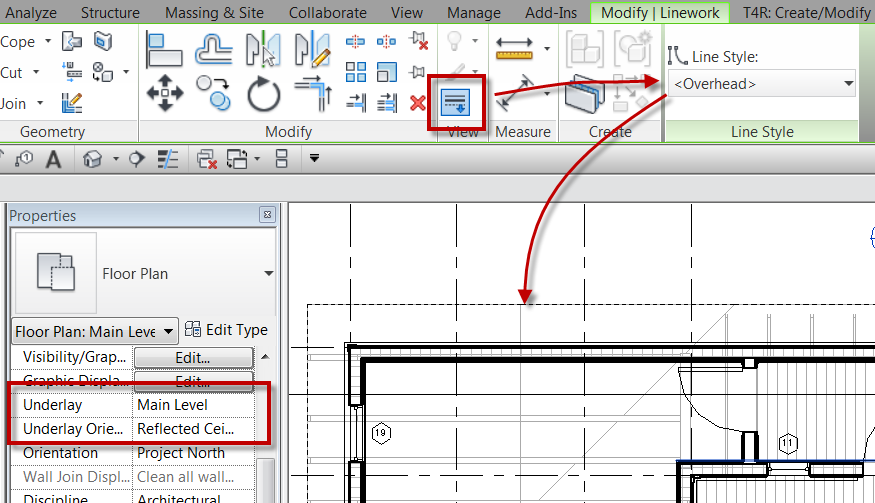
To do this, set the underlay to the current level, and the set the plan orientation to Reflected Ceiling Plan.  Then, on the Modify tab in the View panel, select the Linework command and set the line style to <Overhead>.  Now select the lines that need to be displayed in the plan.  Once that is done go back and change the Underlay to None and the lines that had been changed via the Linework tool will still be displayed.


If you decide later that the lines are no longer needed DO NOT DELETE the lines, this will delete the physical element.  Instead, again use the Linework took and with the linestyle <By Category> and select the lines.  The lines will go back to their default display, or not displayed if the were changed as an underlay.


Continuous Overhanging Gable Roof

A question came up in the Linkd In Group for Club Revit  about creating a single roof with a gable end that would basically go underneath itself to attach back to a wall.  I thought I would do a post to my simple response, so that I can get a bit more detailed in the explanation.

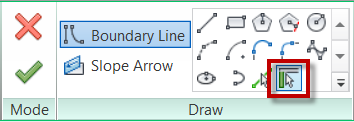
The first step is to create a roof by footprint, personally I would use the Pick Walls tool for this situation.  Uncheck the defines slope option to get the gable ends as needed.  Finish the roof when done
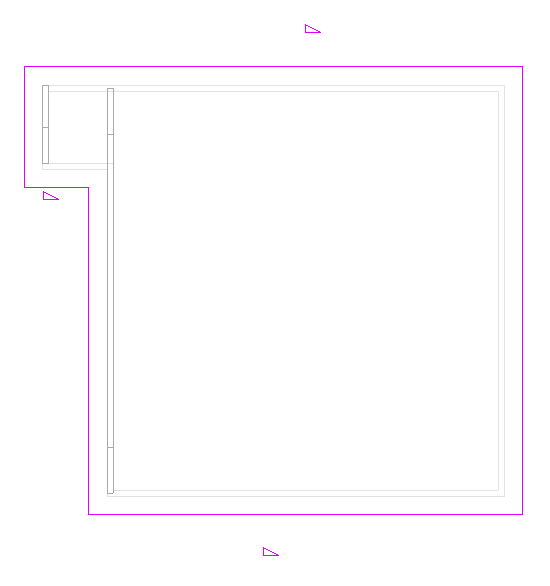


This doesn’t alone dosen’t get the small gable end roof to come back under itself to attach to the wall.  It also doesn’t automatically take the walls up to the roof.
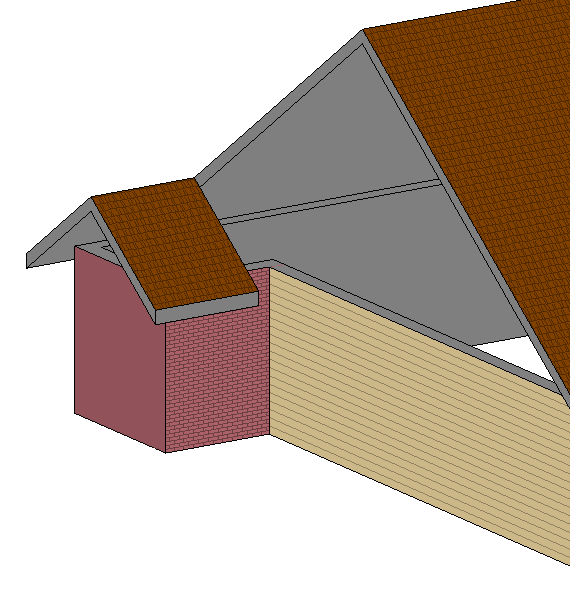


I chose to model another wall above the other and make it the full length of the roof, and then attach that wall to the roof.  This way I have something to Join the roof to.
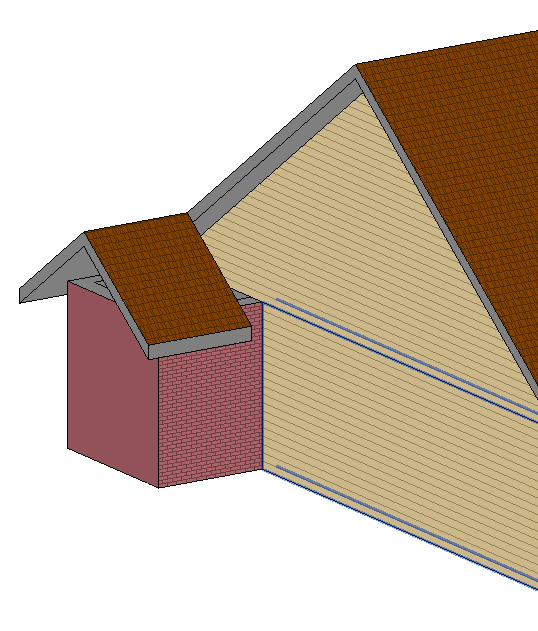


The next step is to use the Roof Join/Unjoin command located on the Geometry panel of the Modify Tab on the ribbon.
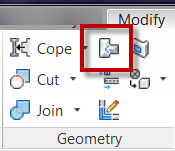


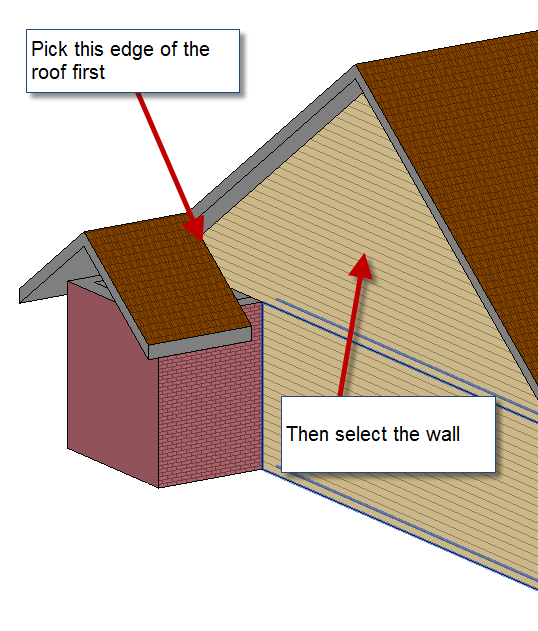
Pick on the edge of the roof that needs to Join to the wall and then pick on the wall.


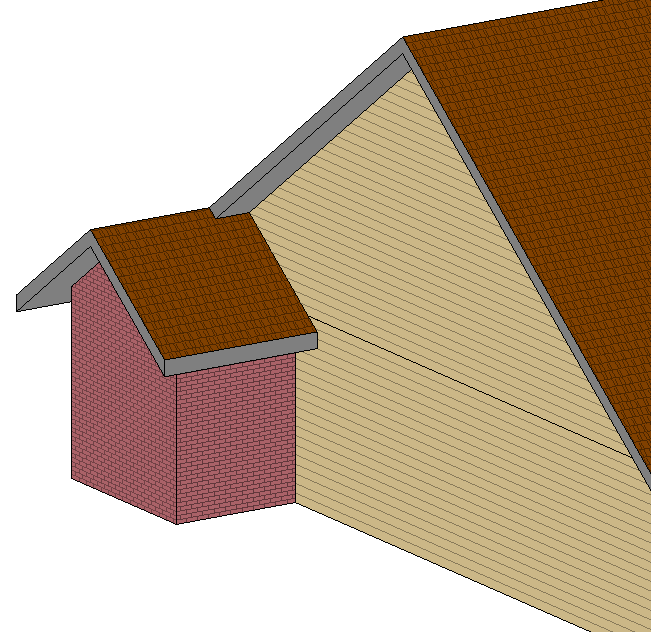
This will be the completed result.  Now just go in and add all the detail like soffits, fascias and gutters.
 

Referenced Bubbles

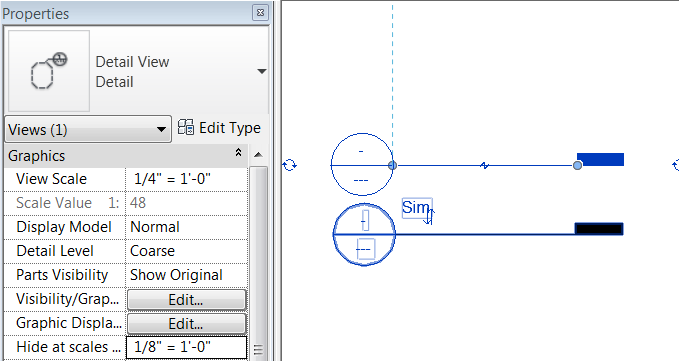
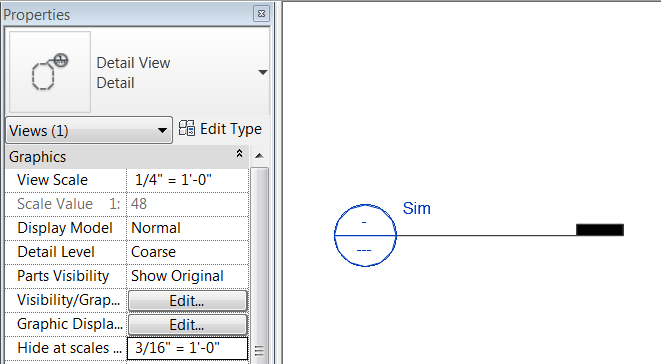
While doing some training today I had a user find a bug in the program that I forgot about.  It has to deal with the “Hide at scales coarser than” value for views.  When a view is not a live view but references another view it doesn’t obey the “Hide at scales coarser than” rules, it will always display. Something to be aware next time you are trying to troubleshoot this issue.