Author Archives: Brian Mackey (The Revit Geek)

SketchBook Express iPad update

Autodesk as released an update for SketchBook Express


What’s New in Version 2.3

✓ Bug Fixes
✓ Improved Pan/Zoom performance
✓ Features for the new iPad
  • Retina Display
  • Canvas size 2048×1536


For those of you who haven’t downloaded this free app here is a description of what it does (Per the app store).

Autodesk SketchBook® Express for iPad is a fun and intuitive drawing application. Get a taste of the SketchBook Pro experience with SketchBook Express.

Use professional-grade tools and brushes to create doodles, quick sketches or artwork on-the-go.

Features:

✓ Full Screen work space with support for any device orientation
✓ Canvas size: 1024 x 768

✓Multi-Touch Interface:
• Two finger pan & zoom navigation with 2500% zoom
• Three finger tap for controls
• Three finger swipe gestures for quick access

✓High Quality Brushes and Tools:
• Professional-grade paint engine delivers smooth and precise brush strokes
•15 preset brushes, including pencils, pens, markers and Fill Tool
•SketchBook Store to purchase brush packs and a selection of Pro features.
• Draw styles for creating straight lines, rectangles, and circles
• 10 levels of undo and redo (Quick Access: three finger swipe left and right)
• Dynamic symmetric drawing

✓Layers:
• 3 Layers allowing easy build up of a drawing
• Import layers from Photo Library
• Duplicate, Merge and Reorder Layers
• Move, scale, and rotate layers interactively using Multi-Touch
• Toggle visibility and adjust Layer Opacity

✓Text:
• Create text with a variety of fonts, colors, sizes and placement.

✓Colors:
• Color Wheel with HSB and RBG color space
• Eye-dropper color selection

✓Gallery:
• Store and view work in progress
• Export to Photo Library
• Browse images in full-screen mode

✓ iCloud Support
∙ Option to set iCloud as default location to save canvases
∙ Controls in Gallery to upload or download from iCloud

✓Stay Connected:
• Built-in SketchBook News panel for live info about Sketching events and announcements

✓ Visual help pages


For those of you using SketchBook Pro keep looking out for SketchBook INK coming out this spring.
Rotating View Title

When placing a view on a sheet there is the option to rotate the view 90 degrees clockwise or counterclockwise, unfortunately this also rotates the view title.  So how do you rotate the view with out rotating the title?  The answer is to not rotate the view but to rotate the crop region of the view back in the original view, then when it is placed on the sheet it will work the way you were wanting.

Changing Multiple Family Type Values

In a training session the question was asked how to change multiple parameter values in a family when there are several types already set up.  This is a tip I have been using for years and I know it has been posted many times but thought I would add my version to the topic.  The easiest way to do this is to add a value in the formula column, hit apply.  This will change the value to all types in the family, then delete the formula and you have updated all the types.

Adaptive slab edge

While training a client today the question had come up of how do you do a slab edge when the slab isn’t flat?  This can always be done as an inplace family sweep with a defined profile, but as we all know to many in-place families have a tendency to slow Revit down.  So we went through the process of creating an adaptive family.  The only complaint I have is the limited categories that adaptive components can be, so in this case we left it as a generic model so that it can host rebar.

Start with the Generic Model Adaptive  template, then change the category if desired, we left ours as a generic model. 

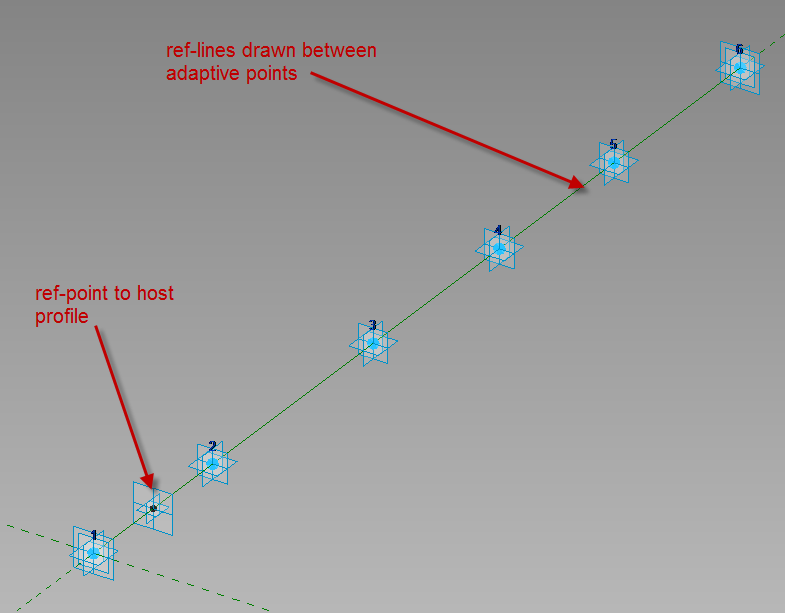
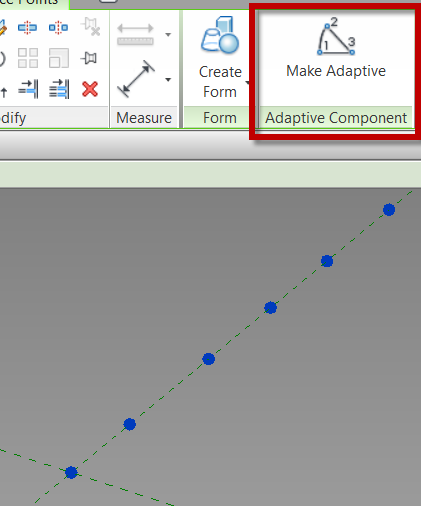
Place ref-points as needed in the view, select the ref-points and change them to adaptive in the contextual ribbon.

Draw ref lines from the first adaptive point to the second to the third etc., make sure 3D Snapping is on before drawing.  Next draw one ref-point on the ref-line, this point will be used to host the profile.

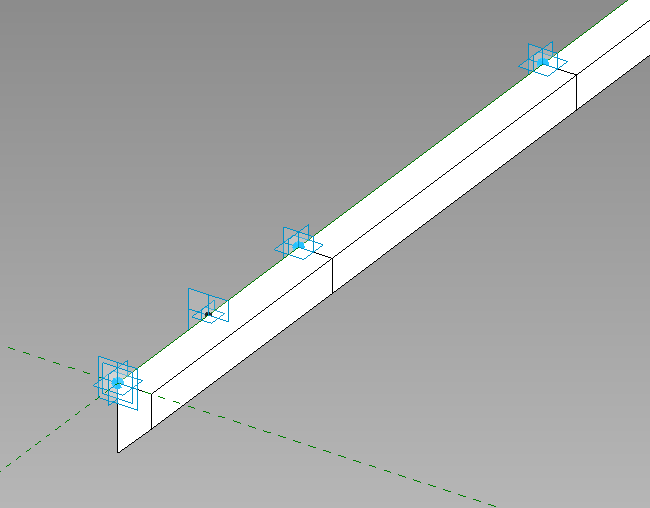
Since profile families can’t be used inside of an adaptive family create a generic model using model lines to be the profile of the thickened slab, load that into the family and place it on the ref-point.  Select the profile family and map the parameters to parameters in the adaptive family.  Select the profile and the ref-lines then create form.

This is what we had come up with instead of in-place families.  Comment if this works for you or not.


Space Frame Panel by Pattern

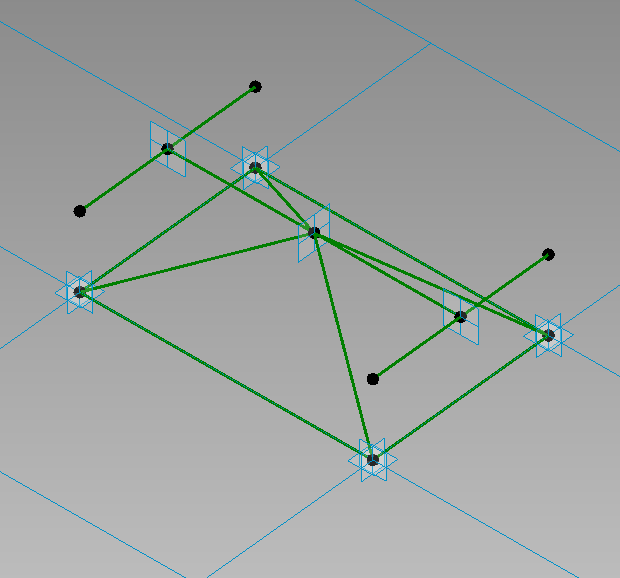
In a previous post I added a curtain panel by pattern to a mass family, this family was set up to be a space frame.

In this post I will get into how this family was created by using the curtain panel pattern based (CPPB) family template.  With any CPPB family it is crucial to pay attention to the workplanes that are being used, most of the times these will either be points or reference lines.  My first few attempts at CPPB families I didn’t pay as much attention as I should have and struggled getting the results that were needed, by paying attention to that little detail would have saved a ton of headaches.

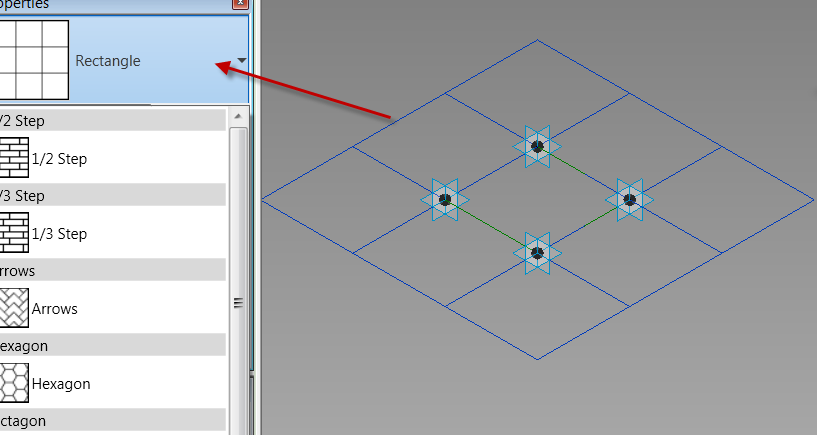
When a CPPB family is open there will be some default ref lines and adaptive points, depending on what the tile pattern grid is set to will determine how many of each there are.  By default it starts with Rectangle, if a different pattern is needed then select the perimeter of the blue grid on the screen and change it in the type selector.

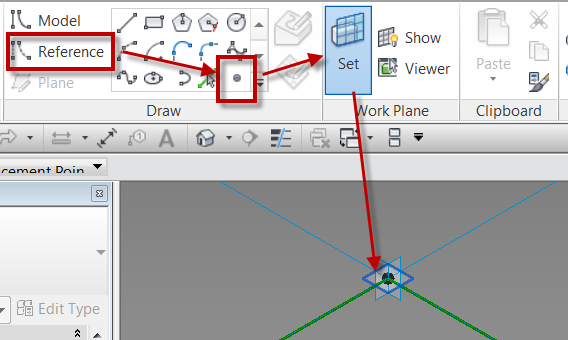
In the space frame family Rectangle is what I needed, so no changes were necessary.  The first thing that was required with this family were some reference points.  These reference points need to be related to the Adaptive points, to do this the workplane of each adaptive point must be selected before placing the ref points.

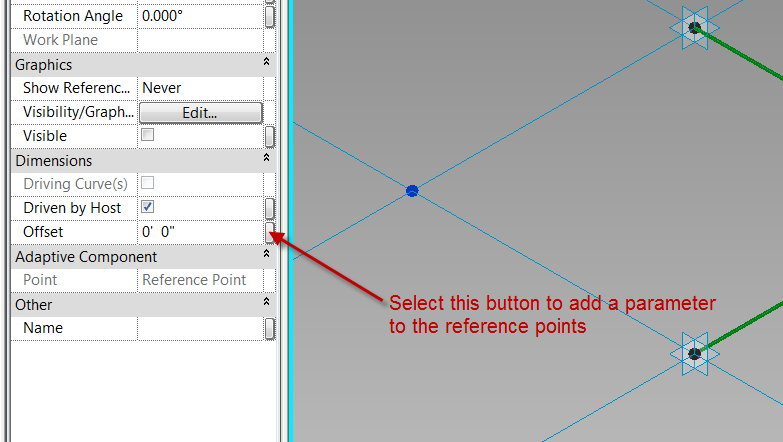
Once the workplane is set place the ref point directly ontop of the adaptive point, do this for all four corners, or adaptive points.  One that is done select the ref points that have been placed (filter is a great tool for this) and  add a parameter for the offset property.

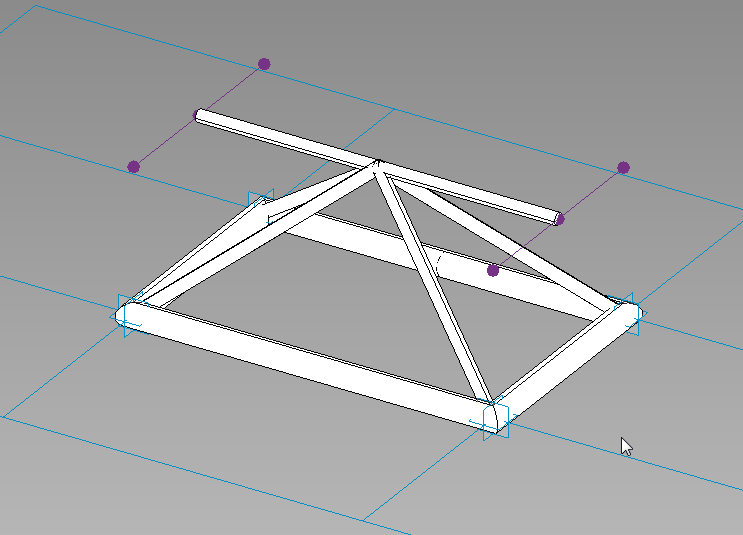
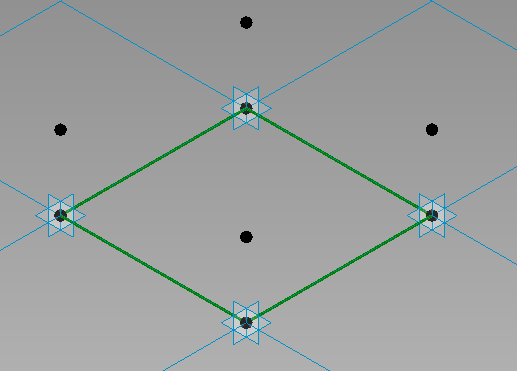
The end result should look like this…

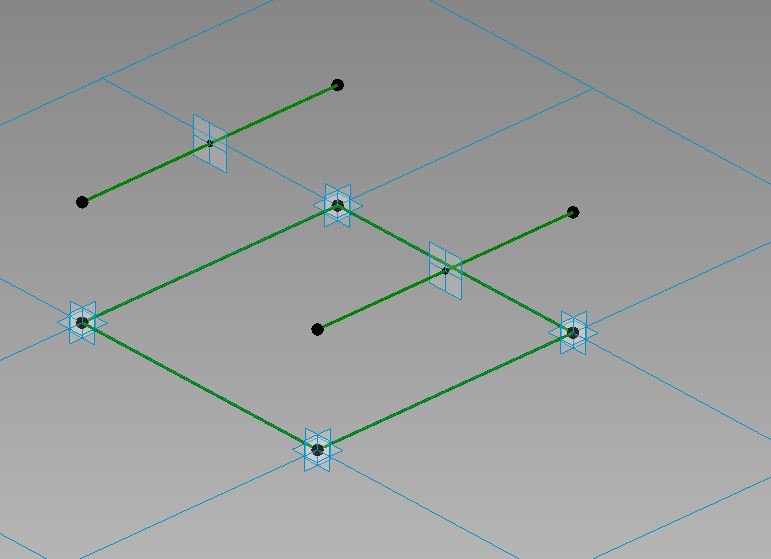
The next step was to draw a reference line from point to point.  The critical step in this is to make sure the 3D snapping is turned on while selecting the the reference points.

Next draw another ref line between the two new ref points.  Again making sure that 3D snapping is turned on.  Add another ref point to the middle of this line.  Draw 4 new ref planes from the corners to this ref point. 

Now that the rig is done m1ake sure to flex it, move the adaptive points up and down, also select the tile pattern grid and change the properties of the horizontal and vertical spacing.  At this point in time this rig could be applied to a mass, although nothing will be displayed since only reference objects have been used. 

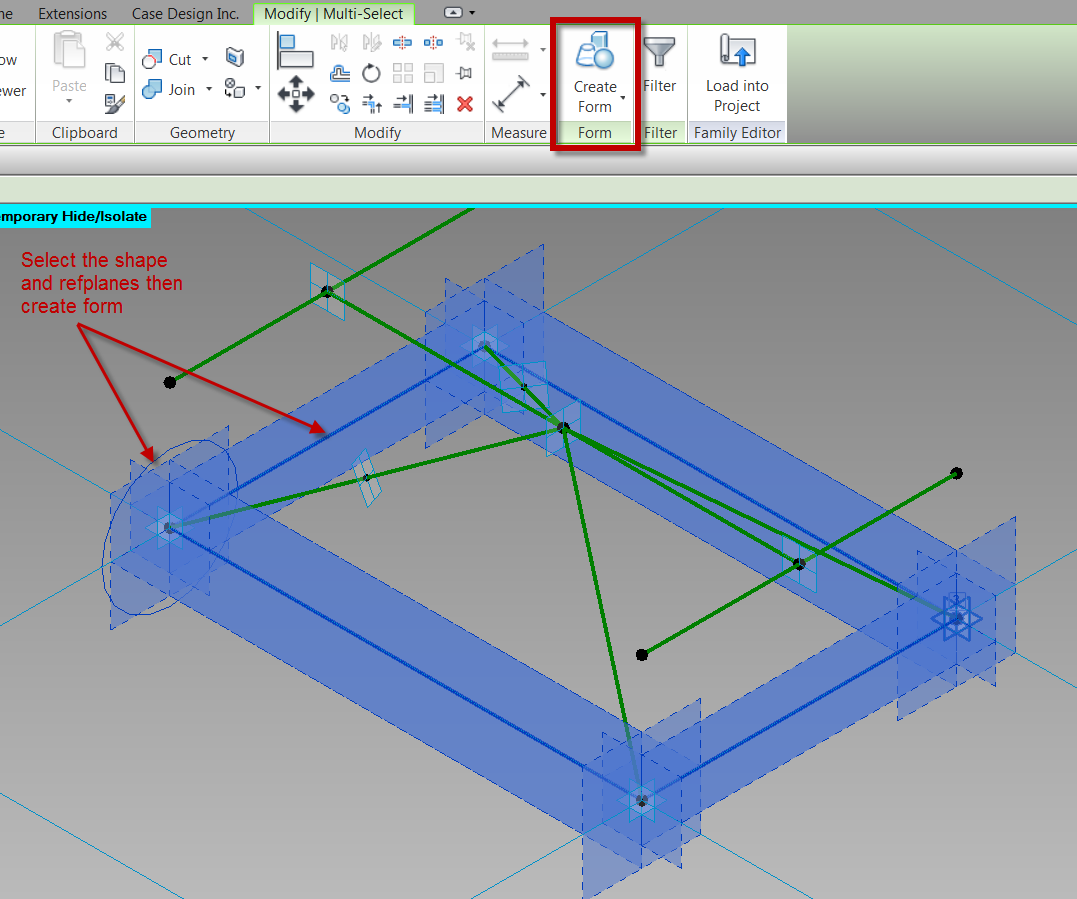
Now sweeps will be needed to represent the frame itself, this can be done in many different ways, this post is just going to use model lines swept along the ref-planes. To do this I will keep making one of the ref-points my workplane then draw a circle on that plane (paramatize as needed), select the circle and the appropriate ref-planes, then select create form.

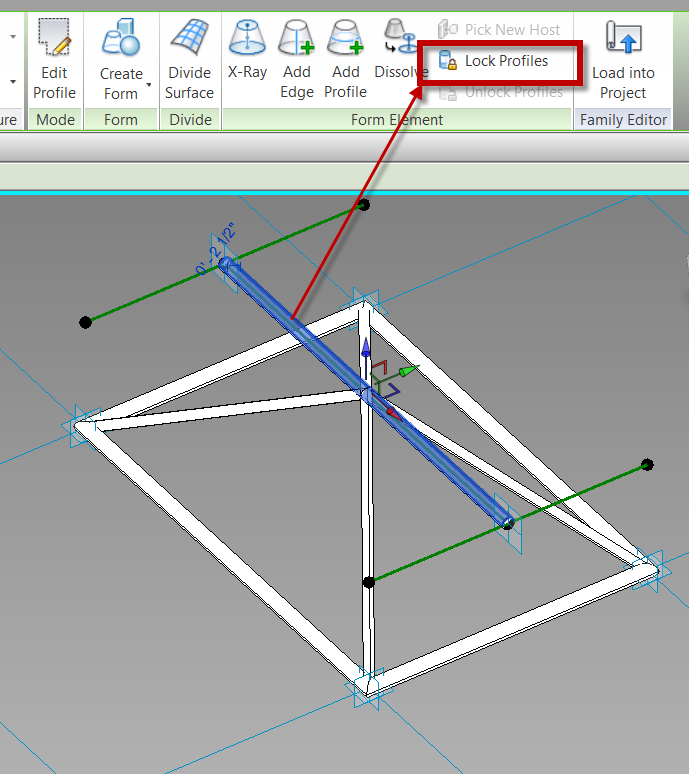
 Note:  When a sweep follows only a single path, and there are parameters assigned to the shape, the shape can vary along the path.  For these instances select the sweep and select the Lock Profile button.

Please post any questions or comments if you have any.