
Snap Distances

I thought I would follow up from the last post with a small little tip.  When the Nudge command is used it looks to the values that are set in the Dimension Snap setting dialog.
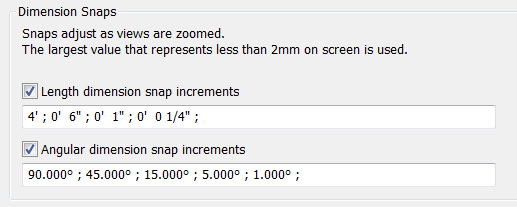
As the description in this dialog box states: When the mouse is moved 2mm on the screen it will snap to the length dimensions that are closest to that zoom resolution, this is also true for the Nudge command.  A little known trick to this dialog box is to adjust it often.  I have heard many times that AutoCAD Architecture or other programs are nice because when inserting doors I can set a desired value and the doors just snap to that distance.
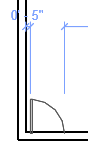
  Revit can do the same if this dialog box is used, Change the 6″ value to say 5″ (127mm) and then start placing doors, they will snap this distance from a desired corner.  I will also change that value to 8″ when  I am working with a brick or masonry wall, now when I model the wall is the correct length.  Of course verify that the temporary dimensions are also set approiately to what you need as well.

Nudge

My tip today is a quick one.  This is something I managed to go years without knowing and so when I noticed myself using it today I thought I would share.  Everyone uses “Nudge”; simply select and object and use the arrow keys to move said object slightly.  But what if you want to move it more than just a little bit?  Hold down the shift key and the nudge distance will increase by a factor of 10.

Automation

When I was getting started in the industry I was paying off bills by being a woodworker.  During my time I was fortunate enough to be at the cutting edge of the business and seeing all of the machinery become computerized and in some cases automated.  So this topic has always interested me in all industries and as new things develop I am always in awe, so when I came across the following C|NET article I was impressed again.  It has a short video of flying robots assembling a tower of blocks per a specified design.  I know this is in a controlled environment and many of the comments in the post elude to this but think of the potential…

ACE Mentoring

This year I got talked into helping out with a program called ACE Mentor Program.  Although I was hesitant to jump into this because I was unsure of the time commitment it would take I am really glad that I did sign up.  It is a program designed to engage and enlighten high school students into the Architecture, Construction and Engineering industries.  There are affiliate programs set up in 32 of the 50 states educating and helping students get into our industry.  Not only is the educational for the students there is also opportunity for these students to be awarded scholarships for winning the competitions in their area.  If you don’t have the time to volunteer at least spread the word to help this program grow.

Design Review Mobile

I got on my iPad this morning and noticed that Autodesk had released an update for the Design Review Mobile app.  I was hoping that this upgraded version would allow me to take my redlines back to the cloud and see them on my desktop.  Well that feature isn’t there yet but they did open it up for  other languages and the viewing of pdf documents you have stored on your cloud account.  As usual some bugs got fixed which is always a good thing.

This does bring me to an iPad or iPhone tip. If you hit the Home Button and the Power button simultaniously then it will create a screen capture of your device.  Since we cant’t get any Design Review redlines back to the cloud at least you can use this tip to email those captured redlines to the person who needs them.