Tag Archives: Tips

2013 Stair and Handrail Quirk 2

As I am setting up my new template for 2013 I will be posting all the little quirks I find so everyone doesn’t have to bang their head on the keyboard as I am doing.

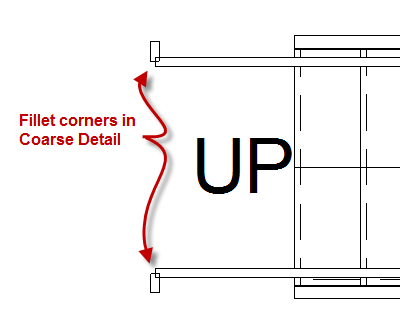
At first glance these tools look great, however once you get into the nuts and bolts of them you will find many different quirks.  Today’s quirk is with the Handrail Type and Top Rail and how they display, or how they don’t display.  One of the values both of these have in common is the capability to have a fillet radius at all the joints.  A really nice feature for this release, however the plan views don’t display them, unless the views’ detail level is set to Fine.  Note this is only for PLAN views, all other views display them correctly.
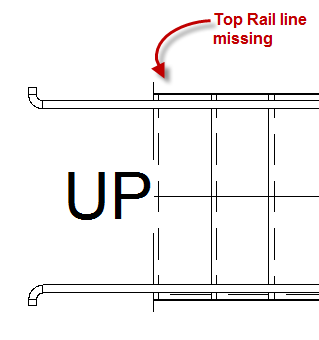
Be cautious however, because sometimes the top rail will disappear when these are adjusted.  I haven’t found the exact reason why this happens, I am still digging into this issue.
 

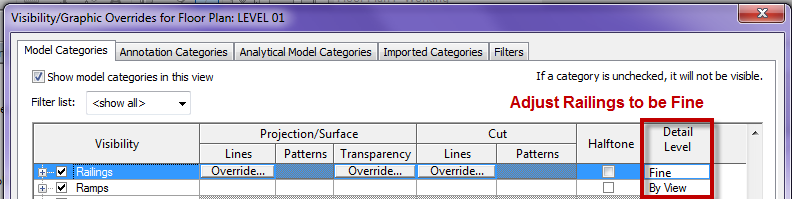
I don’t want all of my plan views to display in fine so I wanted to show a Visibility Graphics tip to everyone.  The far right column of the Visibility Graphics dialog box allows for an individual category to be set as desired.  For Rails in 2013 I have set this to be Fine so that all fillets will be displayed in plan views.
 

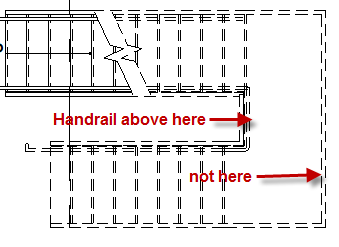
I also am puzzled at the inconsistency of when rails above are being displayed.  In the image below you can see in the inside handrail is displayed all the way up the stair, however the outside rail disappears at the landing.
If anyone has a solution to any of these quirks please comment and let myself and the world know.
Revit Schedules Conditional Formatting

I am a big proponent of using schedules, anyone who knows me has seen me geek out on them.  I also like to use conditional formatting inside of them to help me verify my information is correct.  I did however find a nice bug that came up inside Revit 2013 when using conditional formatting.  In previous releases a conditional format could be used to change the color of another cell, this is where the bug comes in, in 2013 they can only change the color of their own cell.

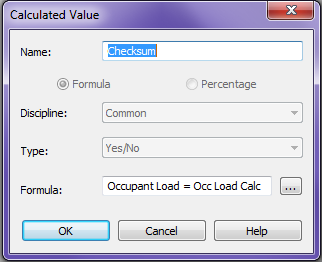
When trying to check to see if one column is the same as another column I use a Yes/No calculated value to display if the columns match.  This can be done numerous ways this is just the method I prefer.

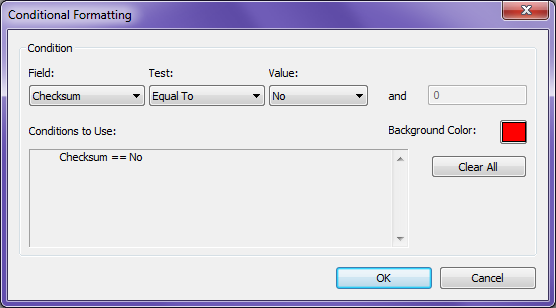
This way I get a nice Yes or No value in the column line.  Then I can use this value to conditionally format a column(s) to change colors to graphically display if the values match or not.

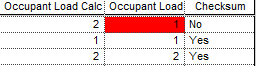
Which displays the schedule like this…

In 2013 the conditional formatting only works on the cell itself.  In the above picture I am using the Checksum column to change the color of the Occupant Load column, this was done in 2012.  It will upgrade from 2012 and display correctly in 2013, however this can not be done if creating it from scratch.  Autodesk has confirmed this issue and hopefully we will see it fixed in the a future upgrade.  I thought others should be aware of this since I fought with it for an hour before I realized it was a bug…

Plan View Types update

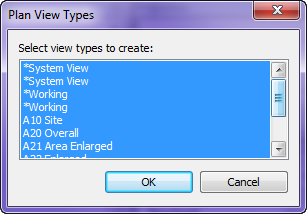
In a previous post I talked about the new feature in 2013 for Plan View Types, and how they can be duplicated.  I also spoke about the fact that when creating a new Level in Revit 2013 it will generate Structural plans as well, I would like to update this notion a little bit.  When a user creates a new Level it will not only add a Structural plan but any plan type that is in the project, this includes Ceiling Plans as well.  If you decide to update your template and take advantage of this new feature you might want to add Ceiling or Floor to the name.  As you can see I didn’t and now it is hard to know am I creating a floor plan or ceiling plan.

Oh and if Autodesk is reading this will you allow this dialog box to be adjustable.  I am just getting started and I already have a decent sized scroll bar.

Detailing- Guide Grid

In Revit I sometimes see users having difficulties or just complaining about detailing, either over the model or standard details, and knowing where and how large of an area they have to detail in.  In my last web-cast Detailing in Revit Part 1 I used a family that I have had for years and it sparked a lot of intrigue.  I thought I would discuss how it was created and the benefits of the family.

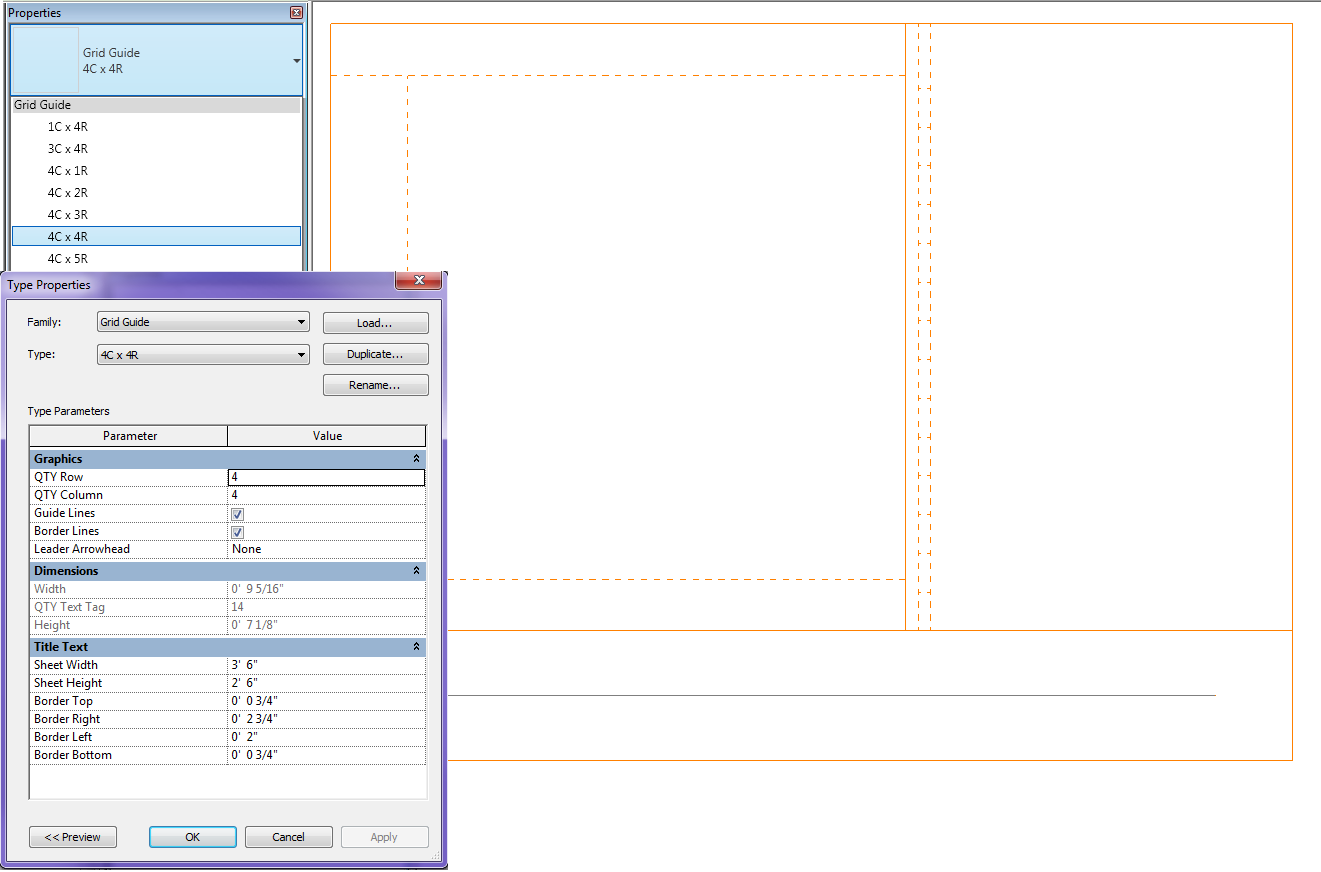
My family is called Guide Grid.rfa and it is used to see the available space for detailing in a view.  This family is created as a generic annotation family so it will scale itself as the scale changes.  It is completely adjustable for titleblock or sheet size per project.  This value may have to be adjusted on a project by project basis, assuming the title blocks are always consitent.  There are also types in the family so a user can decide if they are working with 4columns wide by 4rows high etc.  The size of the box is determined by the sheet size and the row/column quantity.  Once the correct family type is placed in a view the user now knows exactly where to detail and if it is a live view how large to make the crop region.  When it comes time to print just open the type properties of the family and un-check the lines so that there isn’t any orange lines when printing.  Please download the family and let me know how well it works for your company.

Framing Orientation

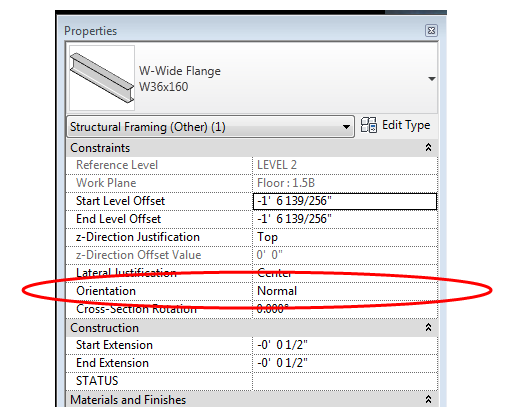
This is one of those Revit basics that has been forgotten, or perhaps never learned.  In the instance parameters for structural framing members, there is a parameter called “Orientation”.

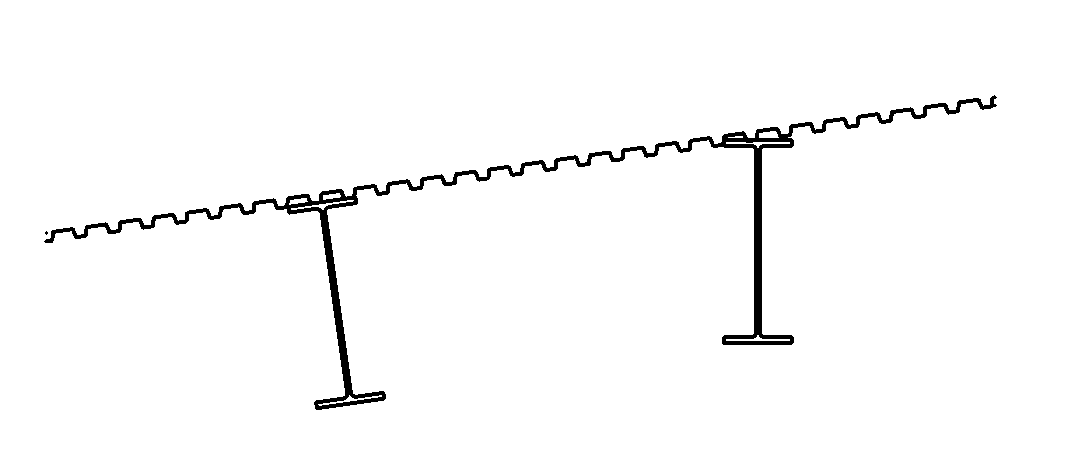
The framing member is only affected by this property if it was modeled on a sloped work plane.

The default orientation is normal – normal to the work plane.

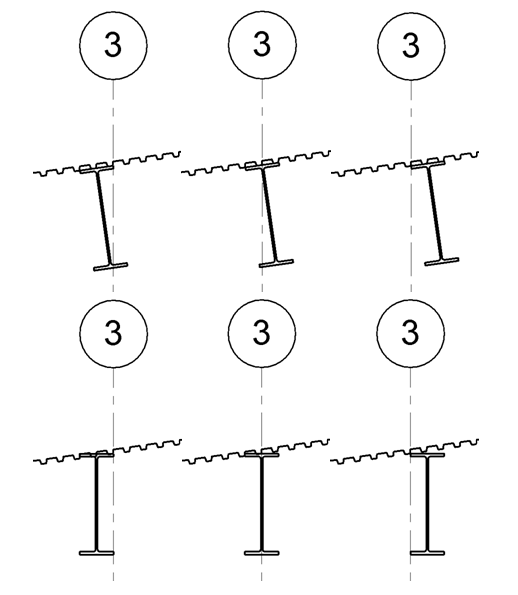
If the orientation is changed to horizontal, the beam will rotate such that the flanges are horizontal.

One item of note is that the rotation point is at the intersection of the top of the beam and the lateral justification (Side 1, Center, or Side 2), so if perfect accuracy is required, the beam may have to be shifted down.  The screen shot below shows how the different combinations of a horizontal orientation interacts with the Lateral Justification.