In case you hadn’t heard Autodesk Released a new service pack for the Revit products. They can be found at the following links.
Revit 2013 Service Pack 2
Leave a reply

In case you hadn’t heard Autodesk Released a new service pack for the Revit products. They can be found at the following links.
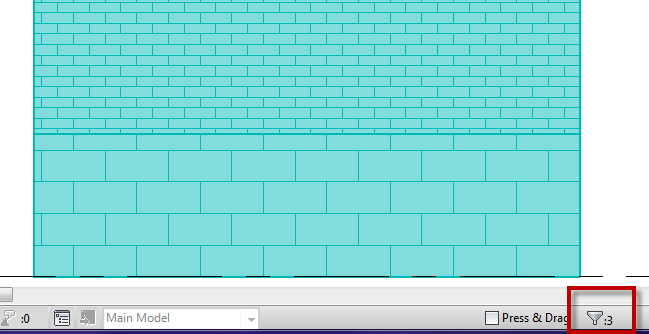
A client was having an issue working with design options and stacked walls the other day. When the stacked wall was selected it wouldn’t allow it to become part of a design option. I started an new file and had the same issue as he was having, however when I went to do it again for this post the issue didn’t happen again, then I realized it had been changed in Revit 2013. I thought I should post it anyway in case this issue does happen for others still using 2012.
As with any element if the host is going to be apart of the design option then anything hosted to it must be part of that same option. For instance all doors and windows hosted in a wall must be part of the same design option the wall is in. Stacked walls are the same, each wall type that make up the stacked wall are hosted to the stacked wall (at least we will say that for this situation), so the stacked wall and all of the individual wall types that make up the stack must be selected in order to become part of a design option. For this to happen the “Tab” key will need to be used to select the individual wall types.
A question came to me this week asking how brace framing can be modeled so that the braces are going in the correct location while having the correct analytical relationship to the columns. In this case the client wanted the “L” angles to be back to back but still be associated with the center-line of the columns. The L angle OOTB family has parameters built in so that the centroid of the size can be set, these are “X” and “Y” parameters. The values in these parameters coincide with the values for the centroid, if the type is duplicated and then these values are set to 0′-0″ then they will be modeled from the back side of the L.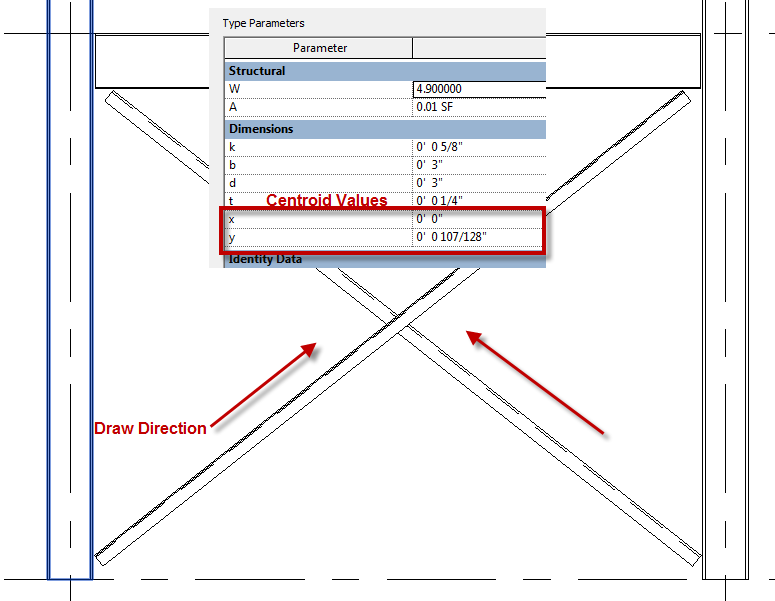
A question came up on why material tags weren’t working on this upgraded file from Revit 2012 to Revit 2013, the problem wasn’t in an upgrade it was in the Visual Style assigned to the view. Certain commands inside of Revit don’t like the view to be in wireframe. In this case the we were dealing with material tags, other tags such as spot elevations also don’t like wireframe. Once a view is changed to wireframe the surface of all elements cease to exist and only the bounding edges are there. If there isn’t a surface to tag there can’t be any materials on that surface, so tools like material tags don’t have anything to tag. This is similar to spot elevations, however a spot elevation can see the edge of an element and tag that.
I have posted in the past about crazy warnings that Revit will give us. I am still trying to figure this one out, are the programmers hacking my webcam and calling me fat? Or is my building going to somehow throw off the earths gravitational spin if the model is actually built? So many ways to interpret this dialog.
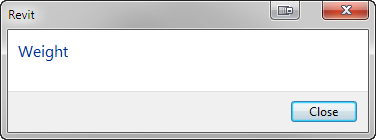
By the way this dialog box came up for me as I was creating a new local file via the open command off of a Revit Server.