I was asked the other day by a user, a frustrated user, how come you can’t go right into the rotate command and place the center rotation point? Well you can easily do this with a keyboard shortcut by default the keys are R3, if you want to change the default the command name in the Keyboard Shortcuts (KS) the command name is “Define a new center of rotation”.
Vasari 2.5
So I was waiting to post about Vasri 2.5 until it was officially released, well that happened today. For those of you who haven’t downloaded Vasari yet or know what it is I highly suggest you do it. Vasari is based on Revit and allows users to create masses, adaptive components and curtain panel by patterns. But that is just the beginning users can also do early analysis on the masses including: wind analysis, solar radiation plus energy and carbon analysis. All of which are extremely helpful in the early conceptual design of a project. Once the final decisions are made the Vasari file can simply be brought into Revit and developed further. Release 2.5 adds Editable perspective views, Improved automatic zoning for energy models and New extrude face tool.
Download and read the information here
http://wikihelp.autodesk.com/Vasari/enu/TP25/Help/0000-New_in_P0
http://wikihelp.autodesk.com/Vasari/enu/TP25
or visit http://projectvasari.com/ for discussion forums and other items.
SketchBook Express iPad update
Autodesk as released an update for SketchBook Express.

What’s New in Version 2.3
✓ Bug Fixes
✓ Improved Pan/Zoom performance
✓ Features for the new iPad
• Retina Display
• Canvas size 2048×1536
For those of you who haven’t downloaded this free app here is a description of what it does (Per the app store).
Autodesk SketchBook® Express for iPad is a fun and intuitive drawing application. Get a taste of the SketchBook Pro experience with SketchBook Express.
Use professional-grade tools and brushes to create doodles, quick sketches or artwork on-the-go.
Features:
✓ Full Screen work space with support for any device orientation
✓ Canvas size: 1024 x 768
✓Multi-Touch Interface:
• Two finger pan & zoom navigation with 2500% zoom
• Three finger tap for controls
• Three finger swipe gestures for quick access
✓High Quality Brushes and Tools:
• Professional-grade paint engine delivers smooth and precise brush strokes
•15 preset brushes, including pencils, pens, markers and Fill Tool
•SketchBook Store to purchase brush packs and a selection of Pro features.
• Draw styles for creating straight lines, rectangles, and circles
• 10 levels of undo and redo (Quick Access: three finger swipe left and right)
• Dynamic symmetric drawing
✓Layers:
• 3 Layers allowing easy build up of a drawing
• Import layers from Photo Library
• Duplicate, Merge and Reorder Layers
• Move, scale, and rotate layers interactively using Multi-Touch
• Toggle visibility and adjust Layer Opacity
✓Text:
• Create text with a variety of fonts, colors, sizes and placement.
✓Colors:
• Color Wheel with HSB and RBG color space
• Eye-dropper color selection
✓Gallery:
• Store and view work in progress
• Export to Photo Library
• Browse images in full-screen mode
✓ iCloud Support
∙ Option to set iCloud as default location to save canvases
∙ Controls in Gallery to upload or download from iCloud
✓Stay Connected:
• Built-in SketchBook News panel for live info about Sketching events and announcements
✓ Visual help pages
For those of you using SketchBook Pro keep looking out for SketchBook INK coming out this spring.

Select by ID
A few days ago, a coworker asked for a way to locate every instance of a family (in this case it was a detail component family). His goal was to delete all instances and the usual process of selecting all instances in the project and hitting delete occasionally does not in fact delete all instances so he wanted another way. He had considered scheduling the instances and then deleting, but not all elements can be scheduled. This particular issue gave me a chance to suggest one of the useful command that I believe tends to be forgotten. The following is the procedure I suggested for locating all instances of a given family, regardless of the ultimate goal (deleting, changing or simply finding them all).
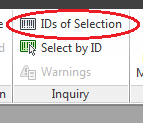
Start by selecting one instance in the project or the family in the project browser, right click and select all instances. Then, in the Manage tab, select “IDs of Selection”.
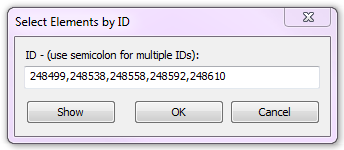
This will bring up a window showing the element IDs of all of the selected elements.
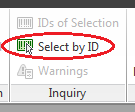
Highlight all of the IDs and copy using Ctrl + C. Then click OK and go back to the Manage tab and select “Select by ID”.
In the window that appears, paste the IDs that were copied to the clipboard using Ctrl + V.
Finally, click Show and the project will cycle through the elements, locating them and showing them.
Side note: if these items are needed for future selections, and you are working in Revit Structure, you can save the selection (also on the Manage tab), or if you are not in Revit Structure, paste the IDs into a text file for future use.
Revit Basics – Temporary Dimensions
This is an excerpt from an article that I wrote for AUGIWorld.
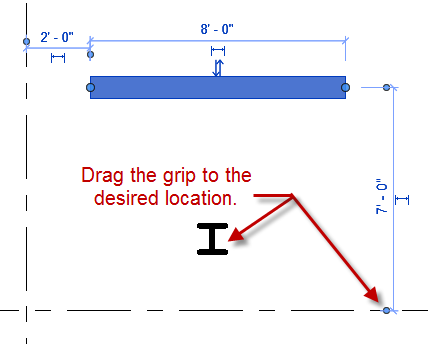
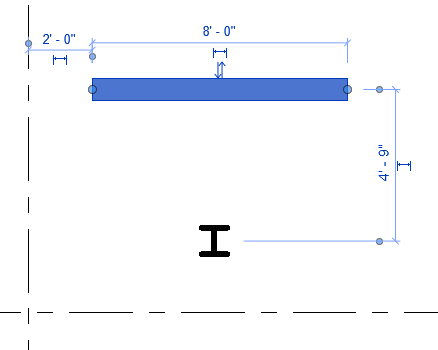
When selecting an element, beginners are taught that the little blue dimensions that appear are temporary dimensions. Unfortunately the temporary dimensions do not always show dimensions between the elements we would like. To change this, grab the little blue dot and drag it to change the witness line. In addition, for some elements such as walls and columns, clicking on the grip will cause the dimension to cycle from face, to centerline, to the other face.
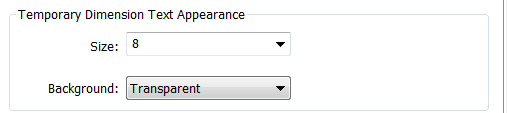
Here are two bonus tips about temporary dimensions: First, in the graphics tab of the Revit options in the application menu (the big R), the size and opacity of the temporary dimension text can be edited. If it is too small or is being obscured, simply change the options.
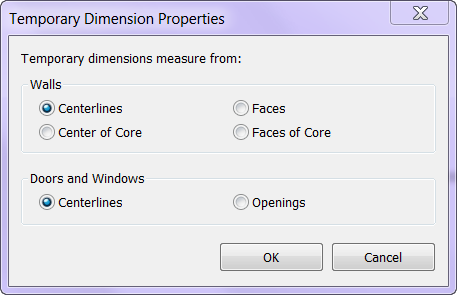
The second bonus tip is that the default locations of temporary dimensions can be changed under Manage Tab: Additional Settings: Temporary Dimensions. This is useful if a user would prefer always to dimension wall faces and/or opening widths instead of their centerlines.