If a search brought you to this old post here are blog links to new features of 2014
http://bdmackeyconsulting.com/revit-2014-new-features/
http://bdmackeyconsulting.com/revit-2014-new-features-help/
http://bdmackeyconsulting.com/autodesk-2014-uninstaller/
In a recent post from AEC Magazine covering a speech from Autodesk CEO Carl Bass, they mention all sorts of things including Autodesk 360 (formerly cloud services), Autodesk 123D capturing service, and the new suites. But what I found interesting is the fact that Autodesk might get away from the yearly release model and replace it with updates through out the year.
“Death of releases?
It seems that Autodesk’s yearly product dump may also be up for review. Mr Bass sees decreasing reasons for a major ‘R’ release when updates can be easily streamed throughout the year.
So there may not be a 2014 release, which raises all sorts of questions about the traditional ‘obit’ and staying on the upgrade cycle — the moving target that is a yearly release becomes a wave of in-year updates.
The company’s decision to concentrate more on its breadth of applications and increased reach with mobile products also puts an end to the traditional list of new features and enhancements. The push is now on omnipresence of data, workflow and the computational and optimisation benefits of cloud. I hope Autodesk’s new found popularity on mobile devices is not going to make it take its eyes off the core professional business; mobile revenue pales into insignificance to that of any one of Autodesk’s design products alone.”
Does this mean I don’t get to look forward to geeking out on a given day and I get to do it all year long. This makes me think of how they are working with Vasari and update it as there are significant changes. I personally like this workflow, as I think that since they are set on a fixed deadline and there are new features they are trying to fit into that schedule, that if they had a bit longer would have more of a chance to be developed and would be worked out with fewer glitches. This also got me wondering in the Revit world how this would work since we aren’t backwards compatible. If the program is just being updated as needed how do the releases then work, am I now on a different release than my consulatants? I guess we will just have to wait and see what news Autodesk releases in the future.

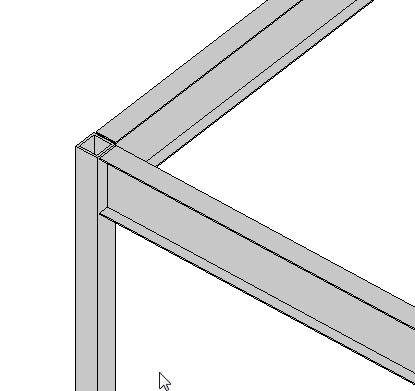 If you have a a beam connected to a column, similar to what is shown (element types can vary), there is a value in the instance properties of the beam called “Start/End Attachment Type”. This property can be changed to End Elevation or Distance, by default the value is End Elevation. End Elevation maintains the value of the beam to the placement level and Distance orients the value to the join location on a column. So if you are wanting the beams to move up and down with the top (or bottom) of a column then you simply change this value to Distance.
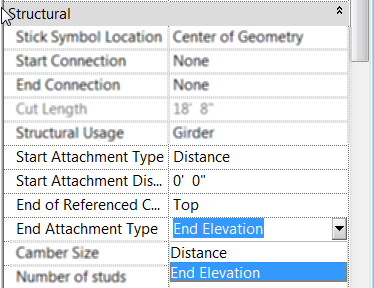 Once the value is changed to Distance then you will see two new properties show up for the beam, “Attachment Distance” and “End of Referenced Column”. Attachment Distance option allows a user to put in a value for an offset of the beam to the top of the column, so that the beam will still move up and down with the column just be that given value away. End of… allows the beam to be either associated to the Top or Bottom of the column.