Author Archives: Brian Mackey (The Revit Geek)

Revit 2013 templates

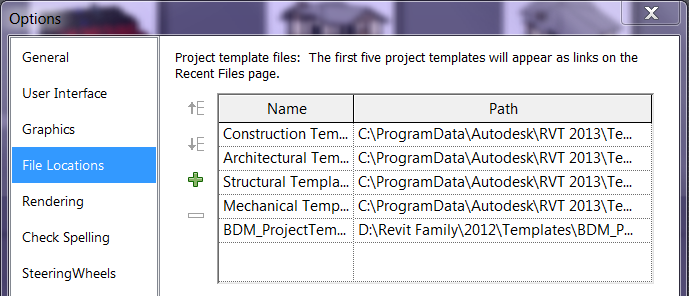
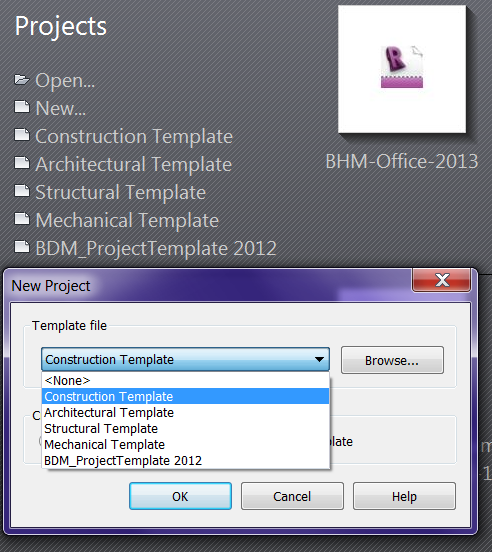
While using Revit 2013 I found a nice undocumented feature in the settings dialog (by undocumented I mean not mentioned in the “new” presentations).  In the file locations there is now the capability to have 5 project templates set and displayed in the recent screen.

  This means we no longer have to browse to start a new project, simply click on the correct template and go.

Ghosted Surface

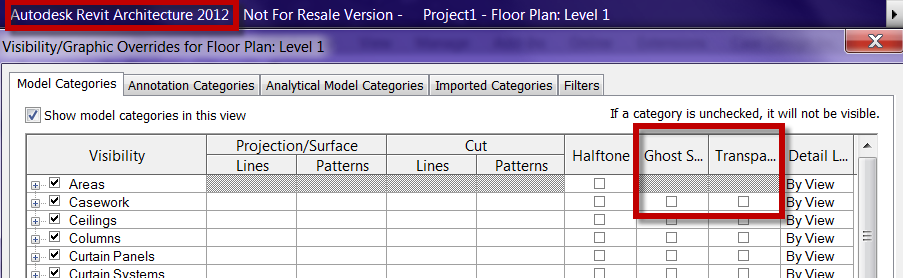
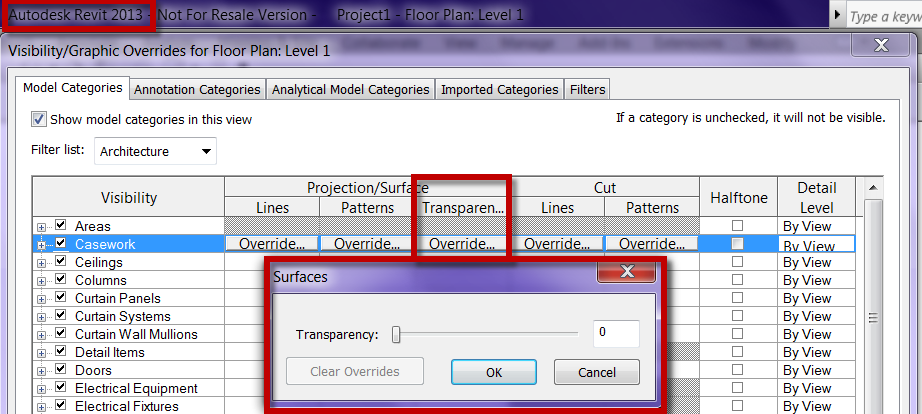
In Revit 2013 they removed the ghosted surface option, don’t freak out just yet, they also removed the transparent option as well.  This still isn’t the time to freak out.  The reason both of the features were removed is due to the fact that they merged to two together, if you think about it this makes total sense, because 100% ghosted is transparent after all.  They both have been replaced with Transparency and this is an adjustable slider.  I like this new feature because now I can make the walls more “Ghosted” or transparent then floors etc.  The combination can be set however you need or want it to be.  Minor change but a good one in my opinion.

Custom Elevation Tags

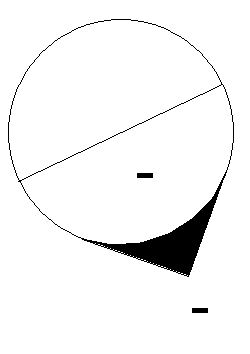
I was really hoping that in Revit 2013 Autodesk would have truly fixed elevation marks so that there can be lines in the symbol and have them not rotate with the symbol.  We can have it with the text in an elevation, heck a section head already has this option, why can’t it be added to the elevation marks.  I am frustrated having the symbol look like this.

Right Click home dimension

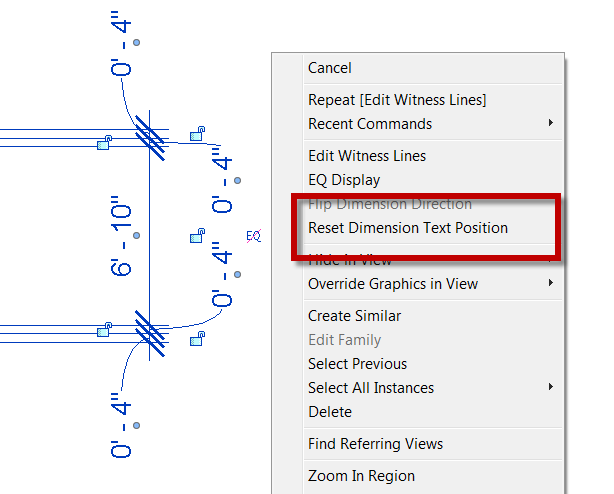
When a new release of Revit comes out I spend alot of time Right clicking with items selected and RC on different grips etc.  I do this because inevitably there is some new undocumented feature in each release that I find.  While in Revit 2013 I thought I had found a new one, only to realize that it was there in 2012 and I had just missed it.  In AutoCAD when you moved the dimension text from it’s home location there was a command called Dim Home that would put the text back to it original location.  Over the years I had just come to get used to the fact that there wasn’t anything like this inside of Revit, you just had to drag the text back to the original location.  I found out that in Revit 2012 if you RC on a dimension that has been moved there is a new option to Reset Dimension Text Position.  This does however reset all moved text back to it’s original location.  In the image below all of the 4″ dimensions will go back to the home position if this is selected.


Purging Unused Views – Sheets

Last year at RTC and AU I spoke on schedules and thought it would be a good time to mention one of the schedules that I spoke about.  For any of you who know me or have talked to me about Revit know that I love schedules.  After the modeling is done I spend just as much time, if not more, in schedules making modifications instead of in the model.  Two of my favorite schedules that I pretty much add to anyone firms templates are ones that allow me delete unused views.  I also use have some to delete all views and sheets prior to posting for consultants.  These schedules are easily created and added to the template.

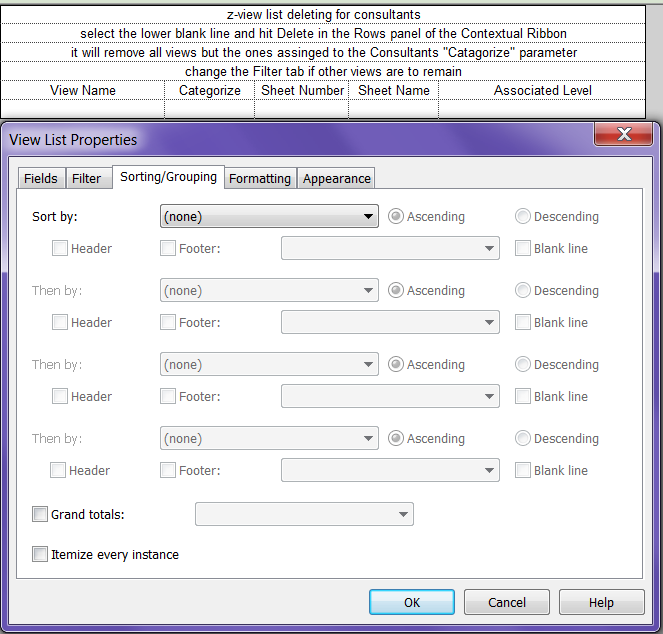
Most of my firms have added a parameter “View Category” or something to sort the views in the project browser.  I take advantage of this parameter when deleting views.  Create a schedule include the parameters you want but at least include the “View Category” parameter.  Use this parameter in the Filter tab so that it will leave out any view that does not want to be deleted.  Just like that all views have been removed so your consultants can have a much smaller file size to link into their model.
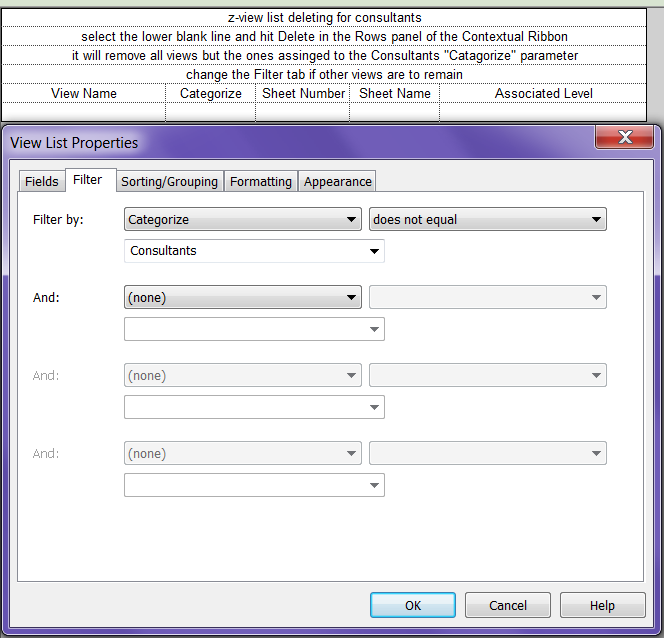
Then use the Sorting and Grouping tab don’t sort by anything and un-check “Itemize every instance”.  This will sort all the of the views to one single line, now all you have to do is select the one line and select Delete in the Modify View List contextual ribbon.