Author Archives: Brian Mackey (The Revit Geek)

Detailing- Guide Grid

In Revit I sometimes see users having difficulties or just complaining about detailing, either over the model or standard details, and knowing where and how large of an area they have to detail in.  In my last web-cast Detailing in Revit Part 1 I used a family that I have had for years and it sparked a lot of intrigue.  I thought I would discuss how it was created and the benefits of the family.

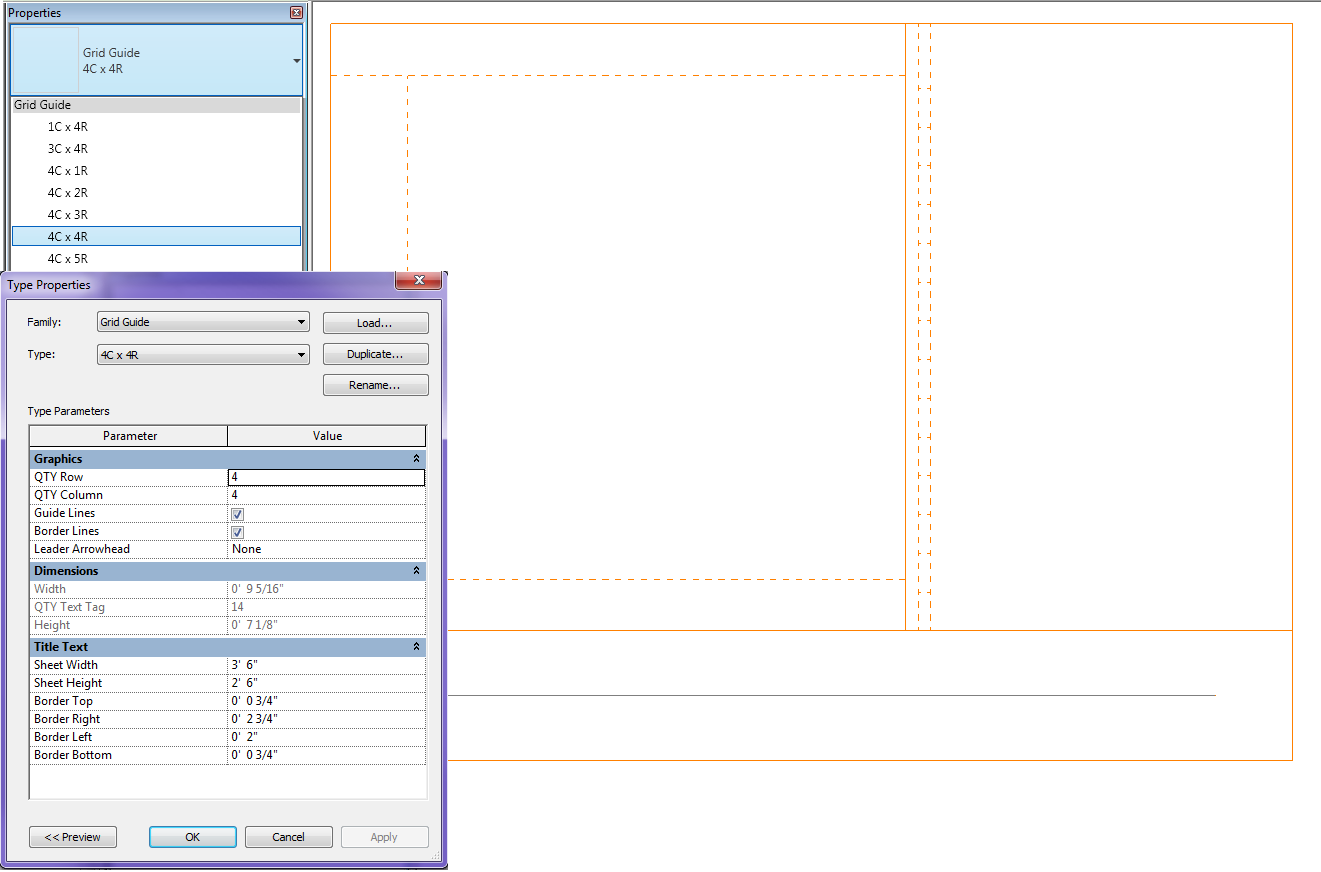
My family is called Guide Grid.rfa and it is used to see the available space for detailing in a view.  This family is created as a generic annotation family so it will scale itself as the scale changes.  It is completely adjustable for titleblock or sheet size per project.  This value may have to be adjusted on a project by project basis, assuming the title blocks are always consitent.  There are also types in the family so a user can decide if they are working with 4columns wide by 4rows high etc.  The size of the box is determined by the sheet size and the row/column quantity.  Once the correct family type is placed in a view the user now knows exactly where to detail and if it is a live view how large to make the crop region.  When it comes time to print just open the type properties of the family and un-check the lines so that there isn’t any orange lines when printing.  Please download the family and let me know how well it works for your company.
Replacing Revit Toposurface

A question came up the other day that is worth a blog post.  My client had created a quick topography from a CAD link that was a preliminary surface.  He had created pads so that the views would look correct.  He now had the new CAD link and wanted to know how to update his surface with the new file.  Unfortunately Revit doesn’t update the surface created from a linked CAD file when the new CAD file is updated.  The trick is to edit the topo surface, delete all the points and then recreate a new surface from the layers in the linked CAD file.   This way Revit keeps the same ID number and building pads can remain to cut out the surface.  However this is one crazy thing that happens when trying to do this, if you delete all the points a warning will come up “A Pad can’t extend beyond the edge of a Toposurface“.  I create a few points that are at a crazy high elevation just around the pad, (by crazy I mean 1000′ or 2500m above the current surface)  then I can easily delete all the points that are at a real elevation in a 3D file.  Once I create a new topo surface from the new CAD link I can delete the points that are generating the huge mountain.  Unfortunately any site component, i.e. trees, parking spaces, etc.  wont update to the new surface.  They will have to be selected and a new host will have to be selected.


Sheet Issue Dates

One common thing I see in a set of Construction Documents is a schedule that displays all of the dates each sheet was issued on, either with a dot or symbol of some sort.  This is usually done with a project parameter for each release date and then someone has to manually go through and mark each sheet for the date it was issued.  I have seen a few different add ons for this to work but here is a nice little tip to use if you don’t have an add on.

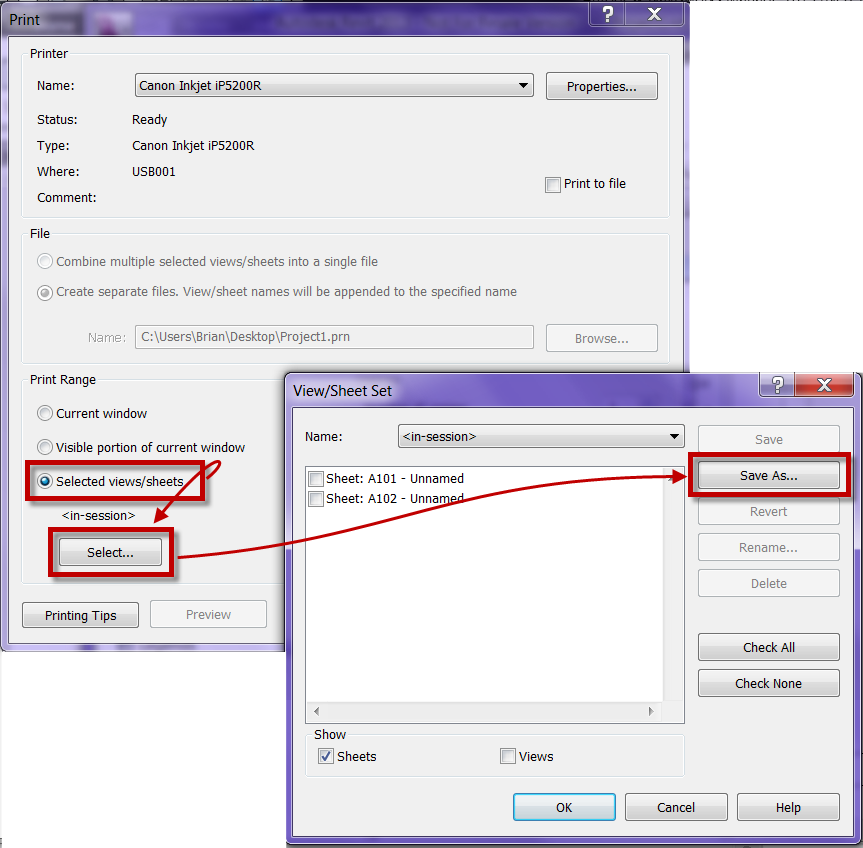
The trik is to create a Sheet Set and then use that sheet set in the browser organization to multiselect all the sheets.  To create the sheet set go into the print dialog and choose to print by “Selected views/sheets” select all the sheets that are part of the print set and do a “Save As…”


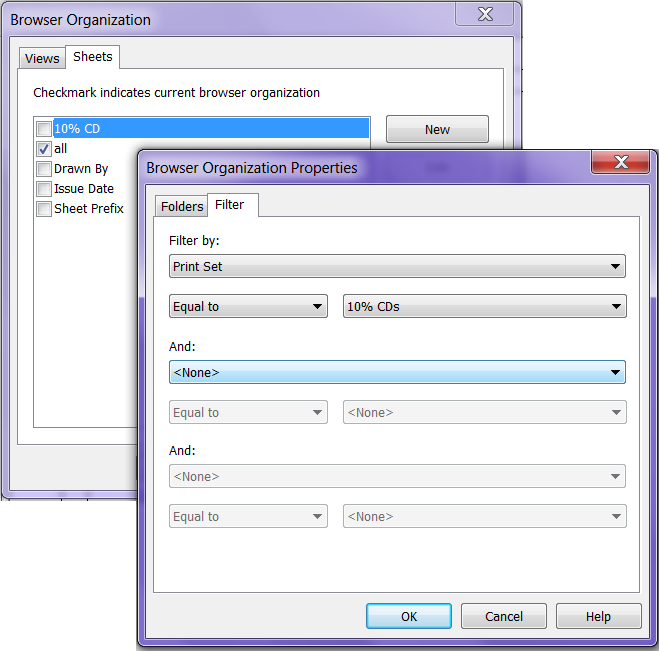
Once a sheet set is created this can now be used for Browser Organization.  The browser organization for sheets can now be set to Filter By “Print Set” (note: in the print dialog this is called Sheet Set not Print Set). 

Now only the issued sheets are available in the browser making it easier to select them all at the same time and check the appropriate project parameter field.


Navisworks opening Revit 2013

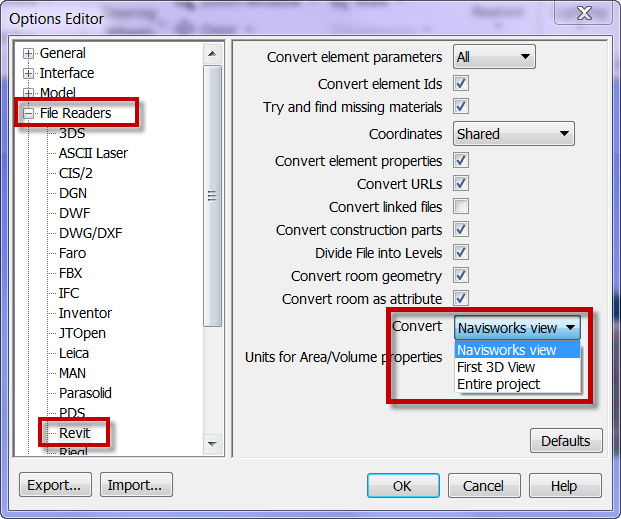
In 2013 Navisworks has the capability to open native Revit files.  The question that arises is how does it know what view in Revit to open and what does it import?  They way this is handled is very nice and once understood pretty self explanatory.  In the Navisworks file Reader options there are some settings to pay attention to. 

The Convert setting is used to determine what view Navisworks refers to, to find what to import.   If it is set to First 3D or Navisworks view it will not only look to what is visible but also the level of detail.  If it is set to Entire Project then everything in the file will come through. 

What is the difference between Navisworks view and First 3D view you ask,  if the Revit file has a view with the name “Navis” and Navisworks view is chosen then it will look to that view for what is visible and what the detail level is set to. If it is set to First 3D view it will use the first 3D view that was created in your Revit Project.

I also choose to not select “Convert linked files”  I would rather bring in each linked model file on it’s own.

Linked AutoCAD Files – Layers

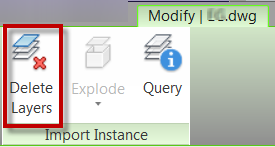
Recently a question arose about removing layers globally from a linked AutoCAD file inside of Revit.  The user had went into Object Styles, Imported Objects Tab and then expanded the file for the .dwg file then proceeded to delete the desired subcategories for object styles.  This sounds like a completely legitimate way to go about this, with any Revit category if the subcategory is no longer needed then we simply delete them.  In the case of a linked AutoCAD file this is not the right way to go about this, the end result will delete the undesired layers but all of the arcs, lines, circles and text will remain in the file. I found this interesting and a bit of a surprise.  If those elements in the CAD file are queried  the will be un-associated to a layer therefore making it impossible to remove them out of the Revit file.  Instead select the CAD file and use the Delete Layers option, this will remove the layers AND all of the associated elements form the entire file.